
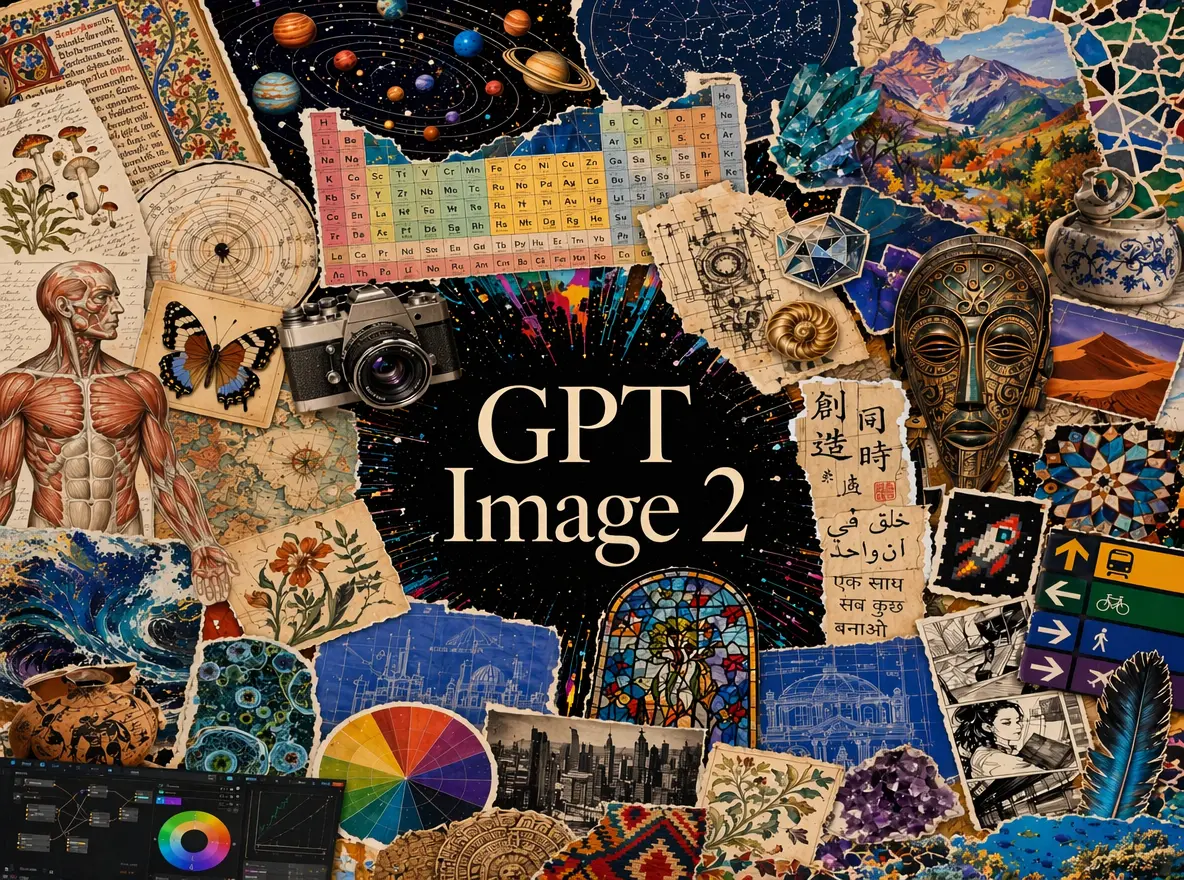
GPT Image 2
Turn descriptions and references into images with GPT Image 2.
View model →Übersichtsseite folgtGive GPT Image 2.5 a scene to create or references to rework. Flare keeps everyday ideas moving; Sunburst gives detailed edits and carefully composed images more attention.
Turn descriptions and references into images with GPT Image 2.
View model →Übersichtsseite folgt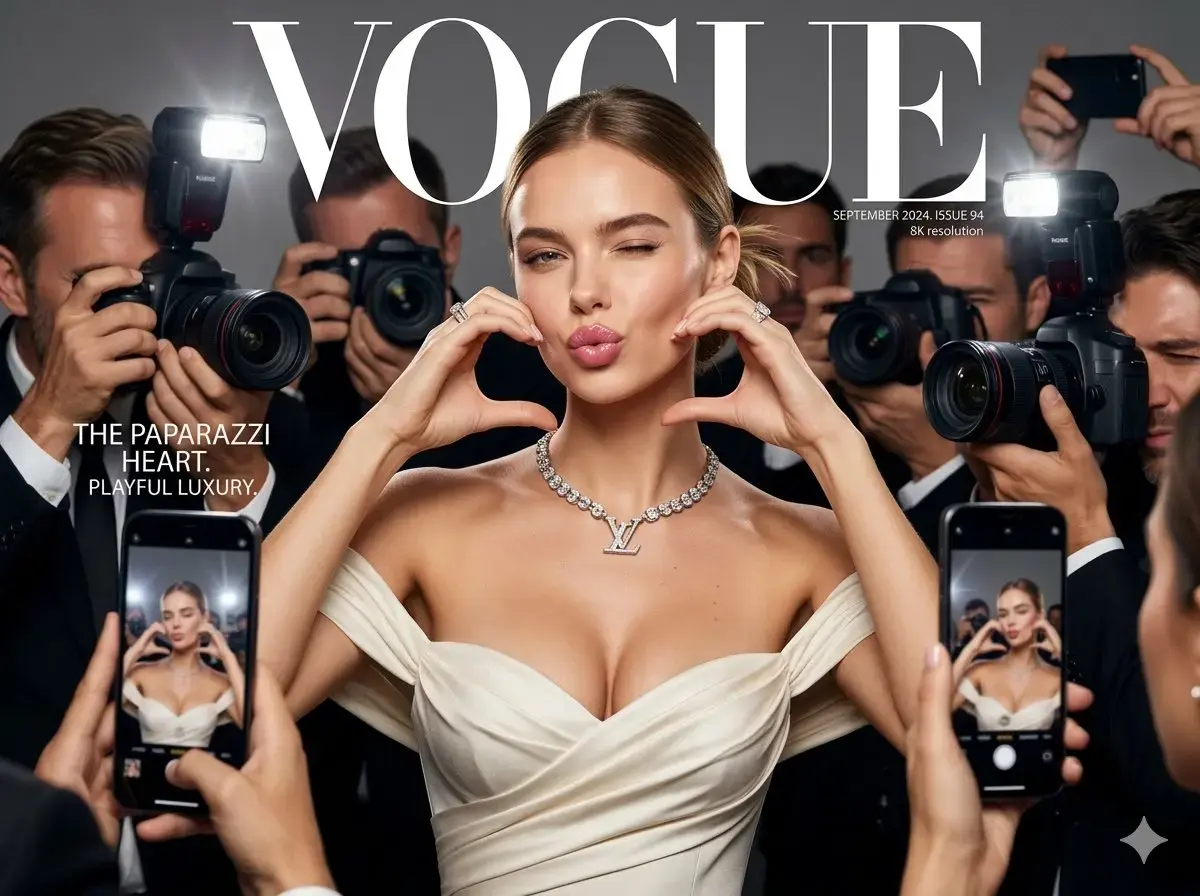
Explore a different way to create images and develop reference-based edits.
View model →Pick Flare or Sunburst, then turn your brief into the instructions that guide the image.
Tell us what belongs in the image, how it should be arranged and the style you want. For edits, add references and describe the changes.
Choose Flare for speed or Sunburst for closer attention to edits. Decide on aspect ratio, resolution, quality and image count.
Check the estimated credits, then request 1–4 images. Each image runs as a separate task.
Download an image you like, or bring it back as a reference. Describe the next change and the parts you want to keep.
On KVideoAI, Flare and Sunburst offer the same settings and credit rates. Let the work decide which model you choose.
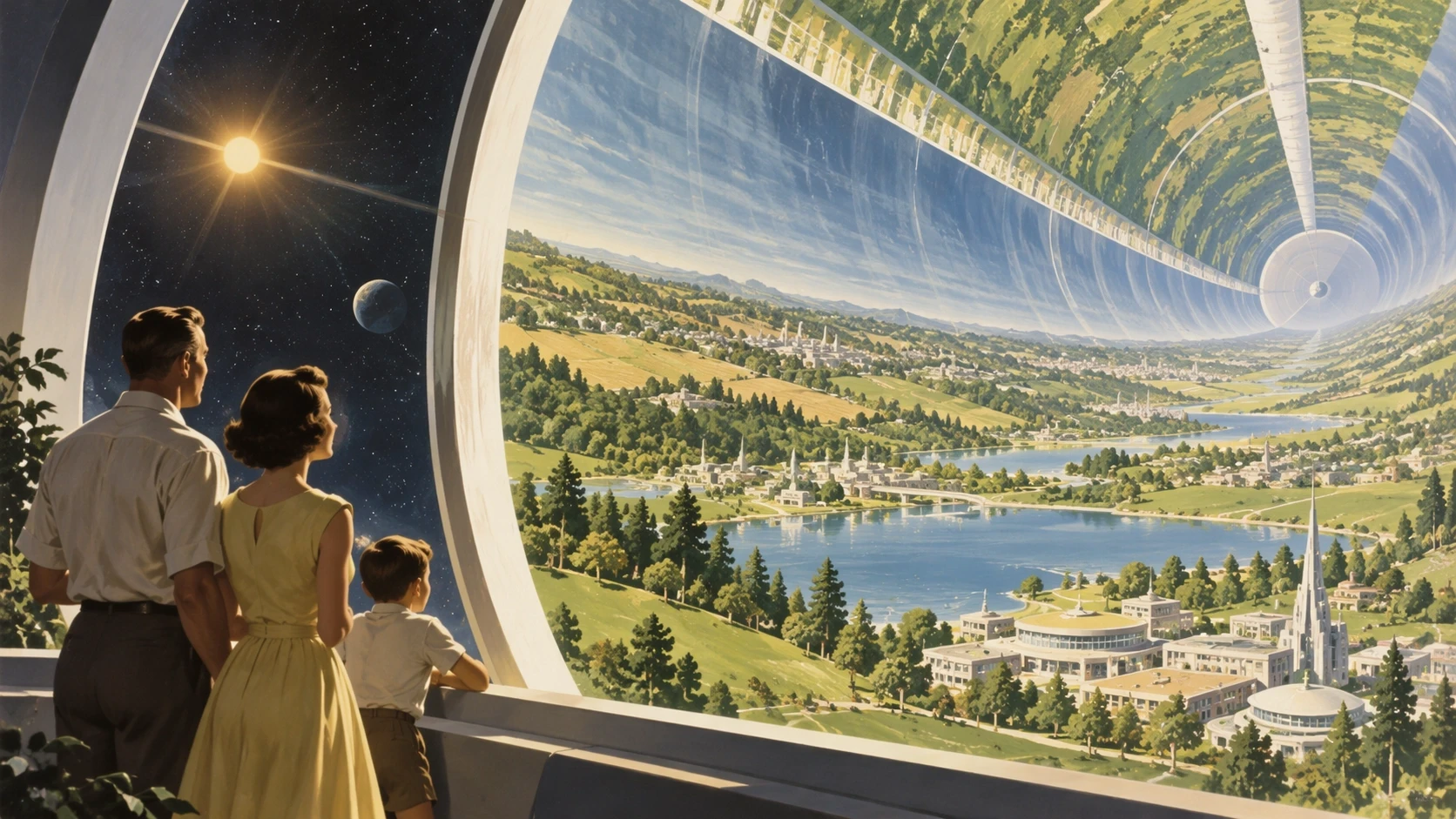
Reach for this speed-focused model when creating everyday visuals, testing an idea or exploring alternatives. Your first visit to this page starts with Flare selected.
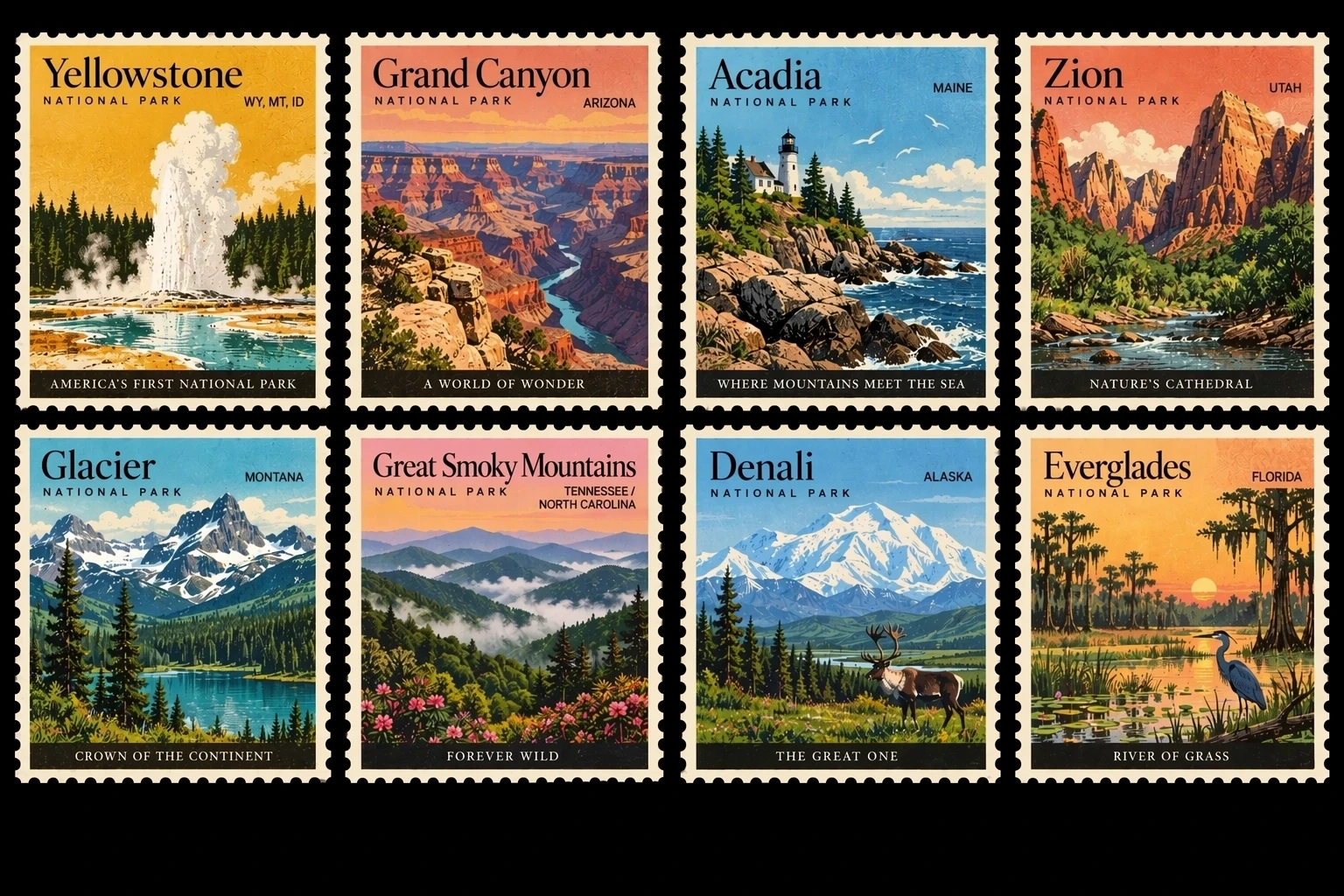
Choose this detail-focused model when a reference edit needs precision or a composition needs close direction. Expect a longer wait than with Flare.
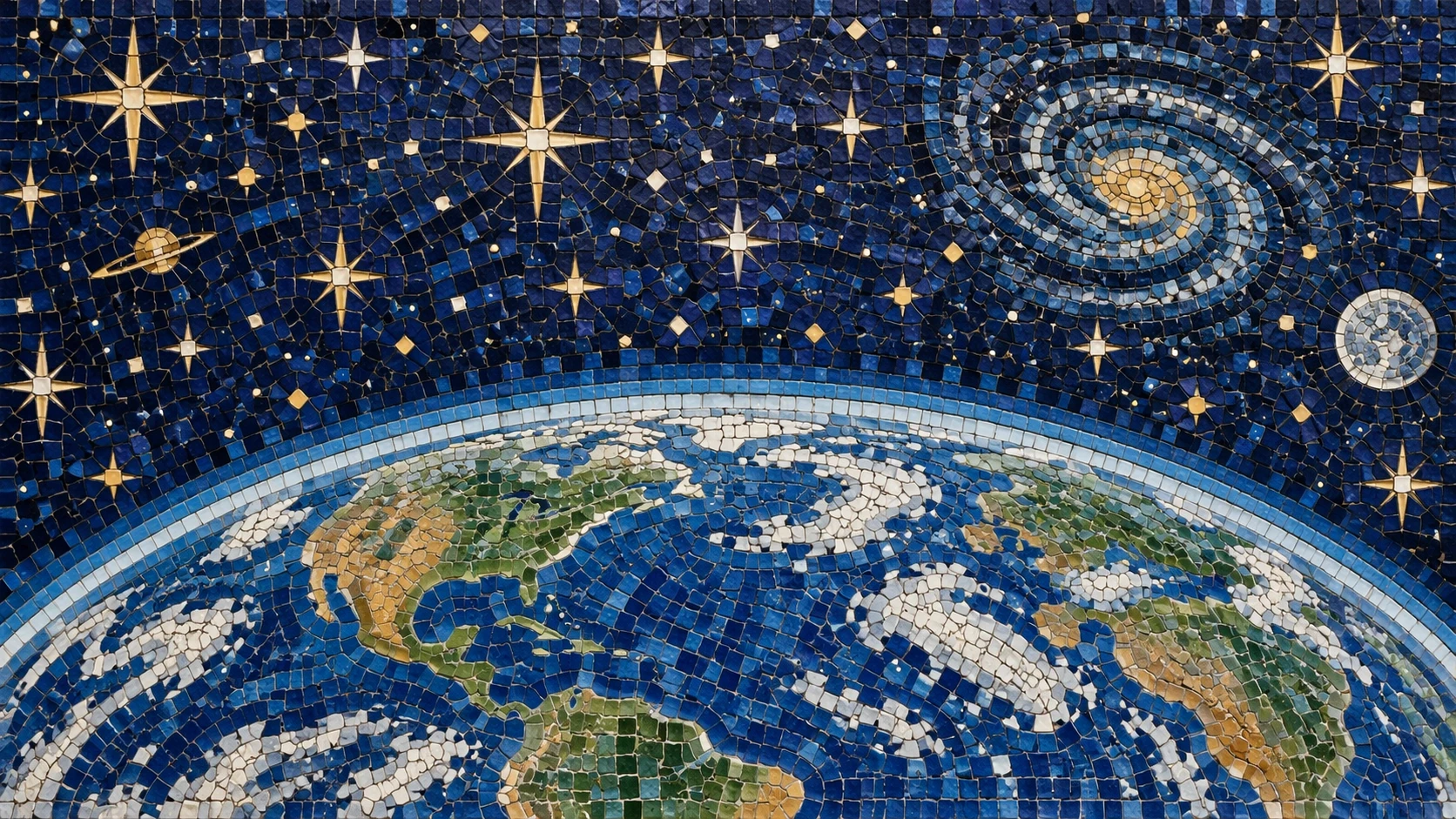
Pair your instructions with reference images. Explain the purpose of each one, including which details to carry forward and which to change.
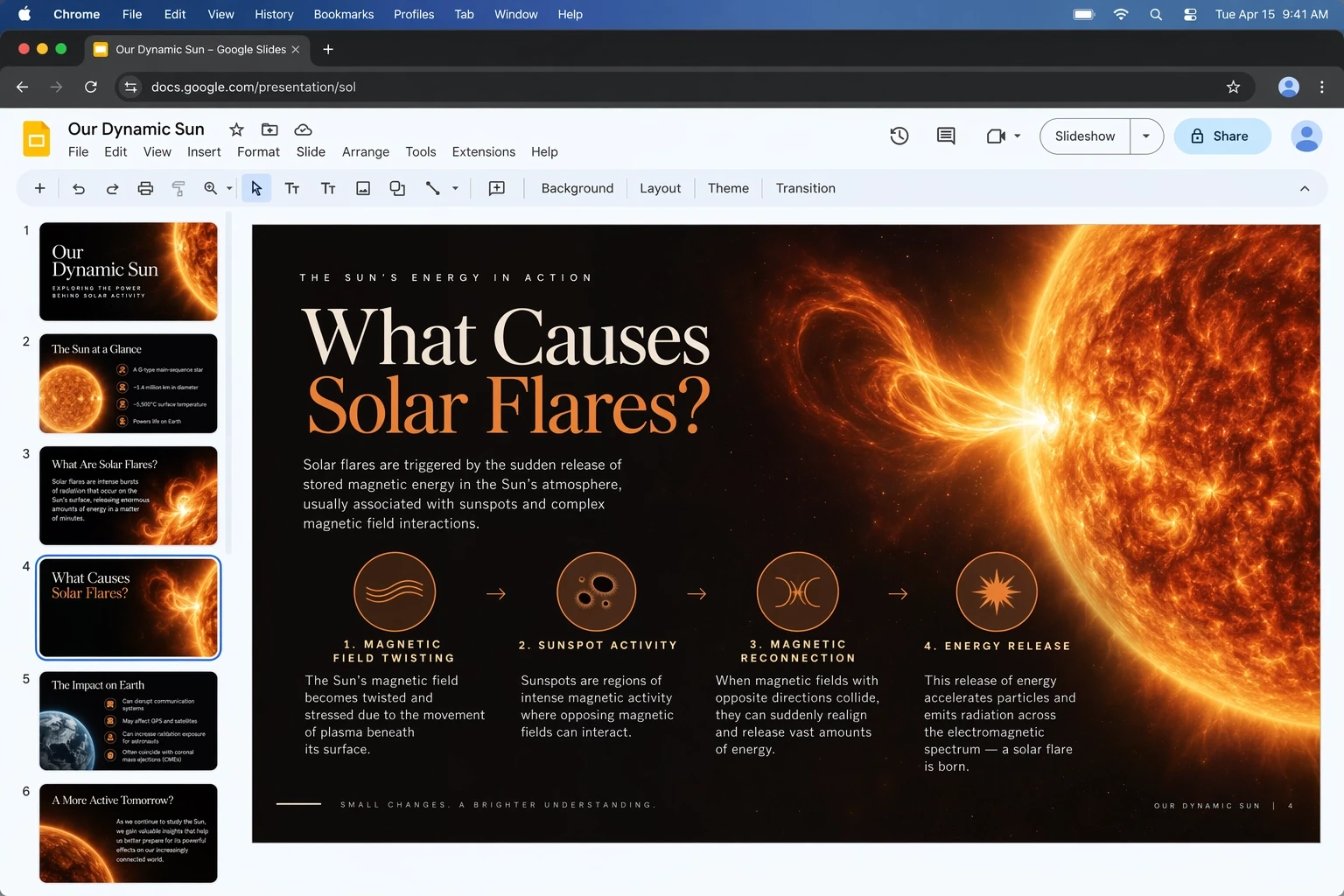
Set one of 15 aspect ratios, choose 1K / 2K / 4K and adjust low / medium / high quality. Resolution names describe size tiers; the aspect ratio determines the exact dimensions.
Tell the model what the project calls for, then choose the approach that fits your workflow.
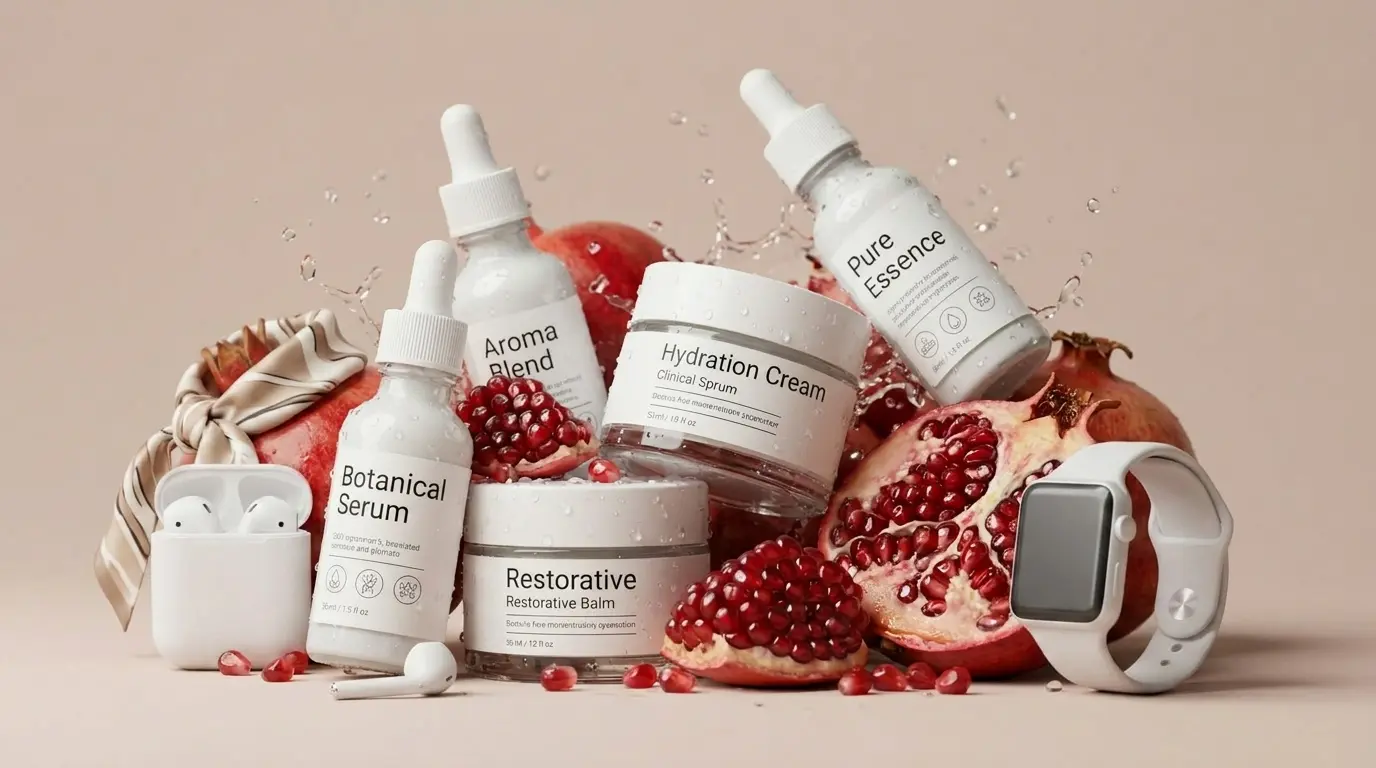
Use your product image as a reference and direct the surrounding scene, from the backdrop to the lighting and framing.
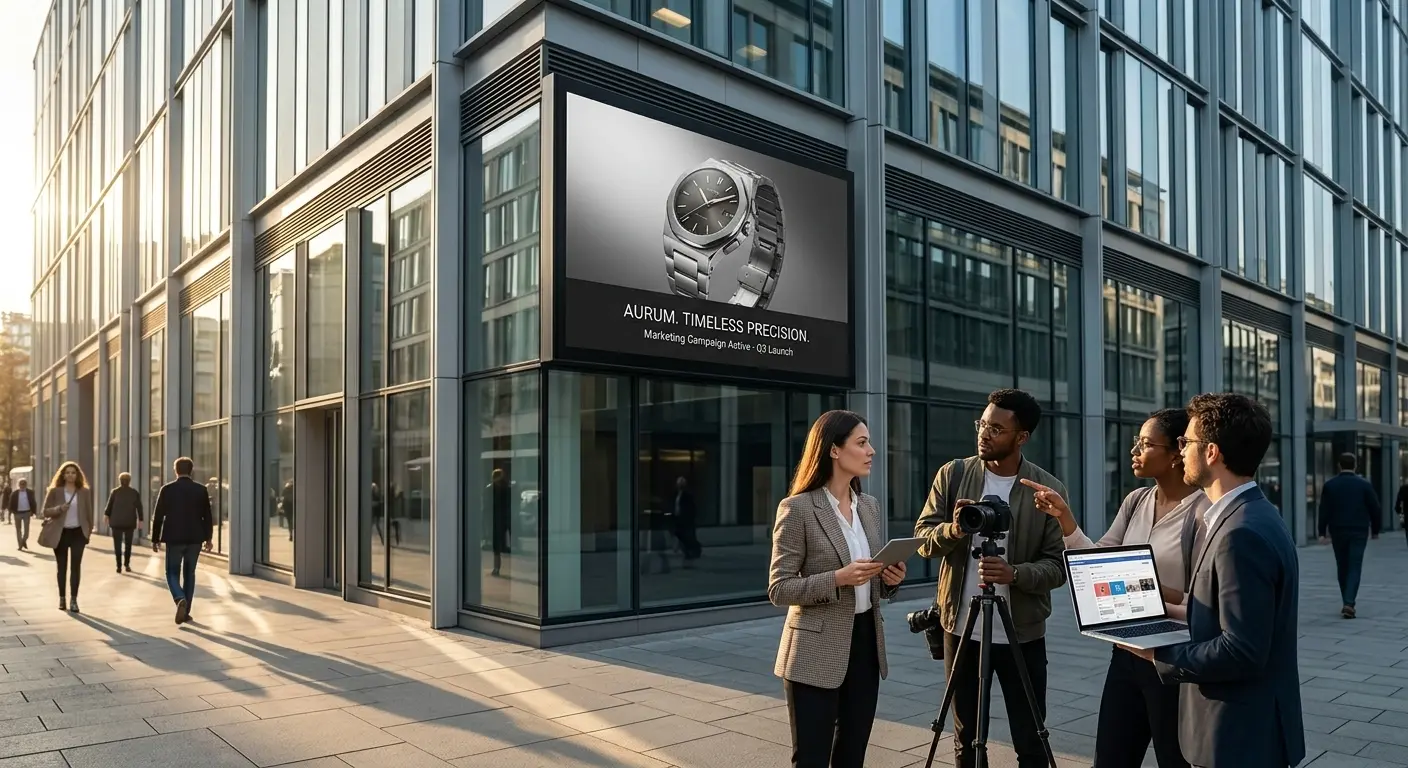
Try different visual directions for an ad. Specify the headline exactly, explain where it belongs and check the lettering before publishing.

Keep one visual direction while adapting the format to portrait, square or landscape placements.
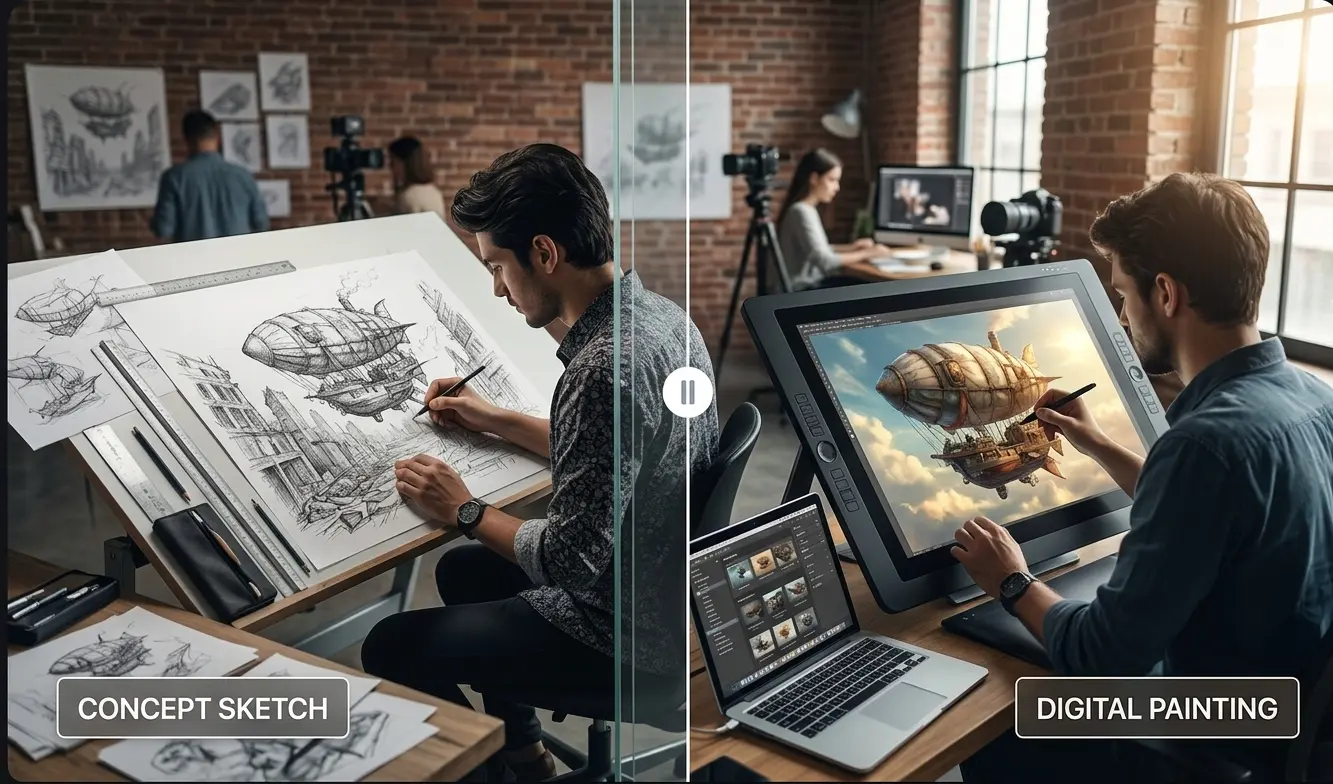
Rework an outfit, object or setting. Name both the changes you want and the elements that should remain.
Use Flare to get started, or bring Sunburst into your next detailed edit.
Create your next imageDiese Website wurde von Sora 2 Enthusiasten erstellt und ist nicht die offizielle OpenAI Sora Website. Für offizielle Informationen besuche openai.com/index/sora-2. Diese Plattform integriert mehrere KI-Modelle, darunter Veo 3, Sora 2 und Nano Banana, und steht nicht in Verbindung mit OpenAI, Inc.