
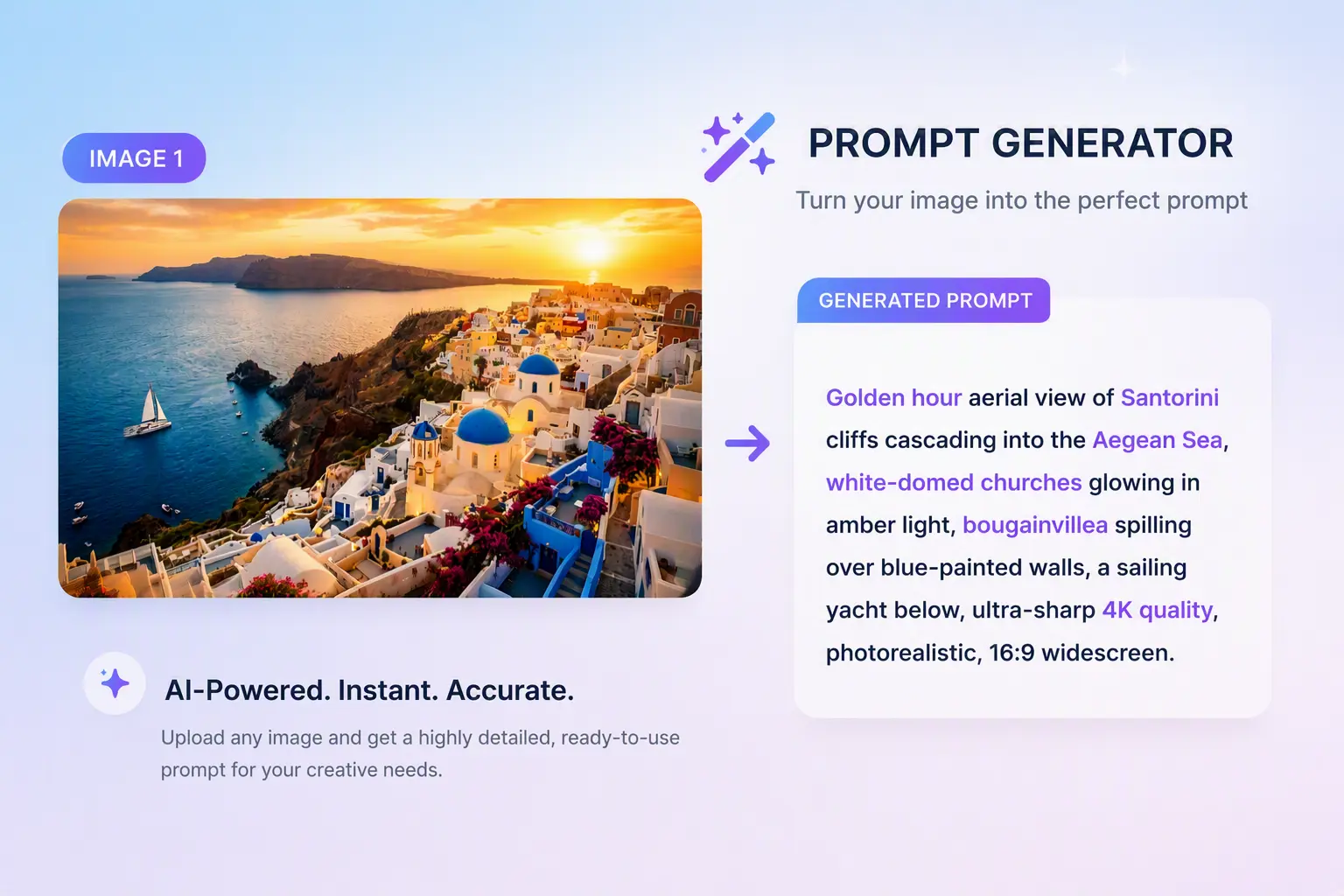
Prompt Generator
Use Prompt Generator to turn an idea into a starting brief for your next visual. Add image, video, or audio references when they help explain what you mean.
- Text and media references
- Image and video prompts
- 1 credit; 2 with video
Before an idea becomes an image or scene, it needs a clear brief. Put yours into a prompt, then see which tools are being prepared for the steps that follow.
Prompt writing is available today. Image upscaling and text removal are still on the way.
Use Prompt Generator to turn an idea into a starting brief for your next visual. Add image, video, or audio references when they help explain what you mean.
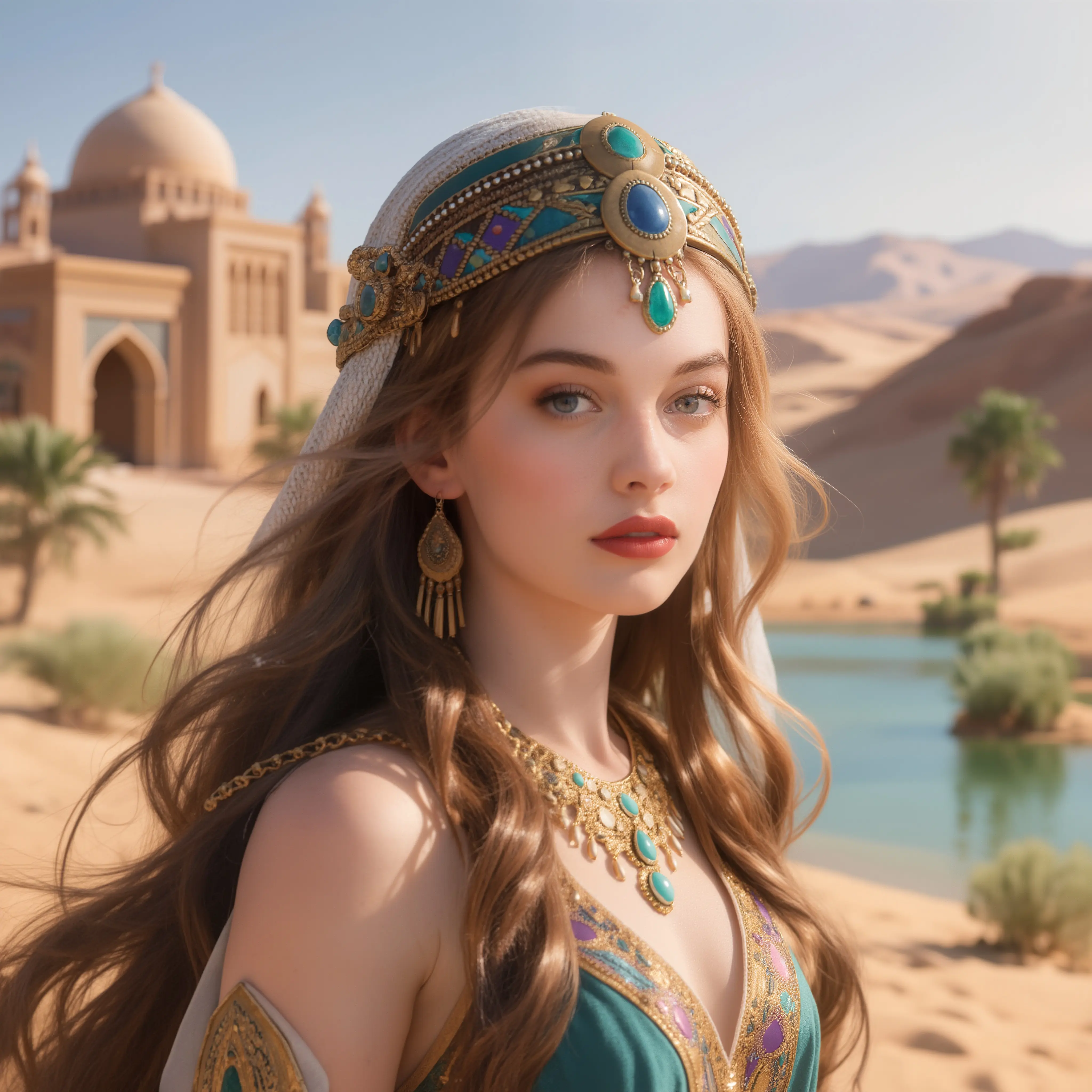
A future release is planned to bring Standard and Quality options for taking uploaded or generated images toward 4K or 8K output. This tool is not open yet.
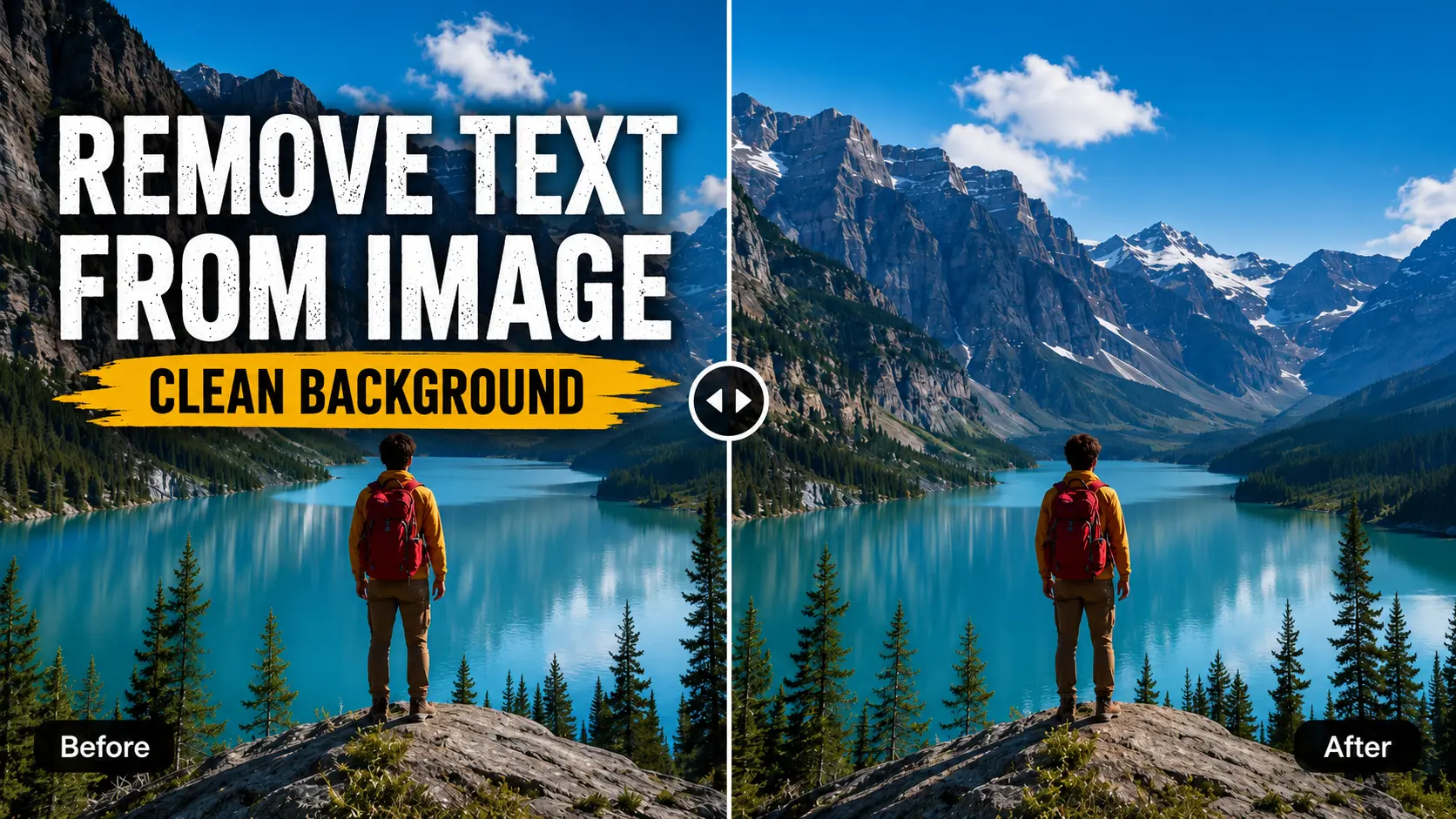
Captions, labels, and dates are the focus of this planned tool. It is intended to remove them and rebuild the area behind them without a hand-painted mask; access is still to come.
See what is planned for dedicated idea-to-design generators. These pages have not been released yet.
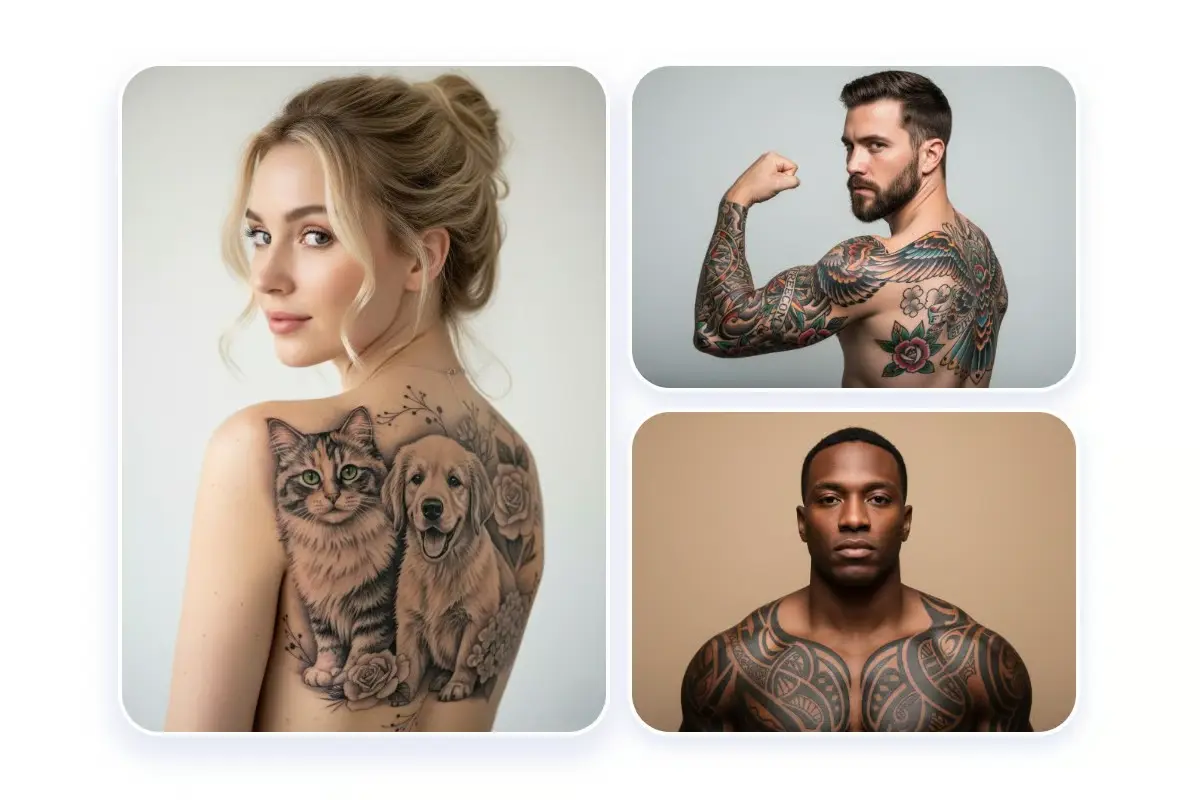
Dedicated styles and reference examples introduce a way to explore tattoo ideas. The page is awaiting release.
Coming soonHow it works
Use the tool available now to prepare your next creative task. The other cards show future options that remain in preparation.
Need to put your idea into words? Open prompt writing. The cleanup and enlargement previews show what is planned for later steps.
Explain the result you are aiming for, and include references that make the idea easier to understand.
Select Image or Video output, then check the options available for writing a prompt that suits your next task.
Review the finished prompt, adjust any final details, and copy it into the generator you want to use. Future image tools will offer their own output settings.
Why choose KVideoAI
Know what you want to make before deciding how to make it. Each tool addresses a focused task, giving you a way to prepare without opening a full editing workspace.
You bring the idea and source material; the available tool guides the focused task. There is no need to learn a whole editing suite to get started.
Move the completed prompt into your selected model’s workflow. Connections for image upscaling are still planned and cannot be used yet.
Without video references, prompt writing costs 1 credit; with video, it costs 2 credits. Review the cost first. Failed requests follow the tool’s refund rules.
Once the brief is ready, get back to creating. Processing time varies with your request and the materials attached to it.
Use cases
Clearer instructions are available today. The remaining examples preview how planned image tools could help with later project stages.
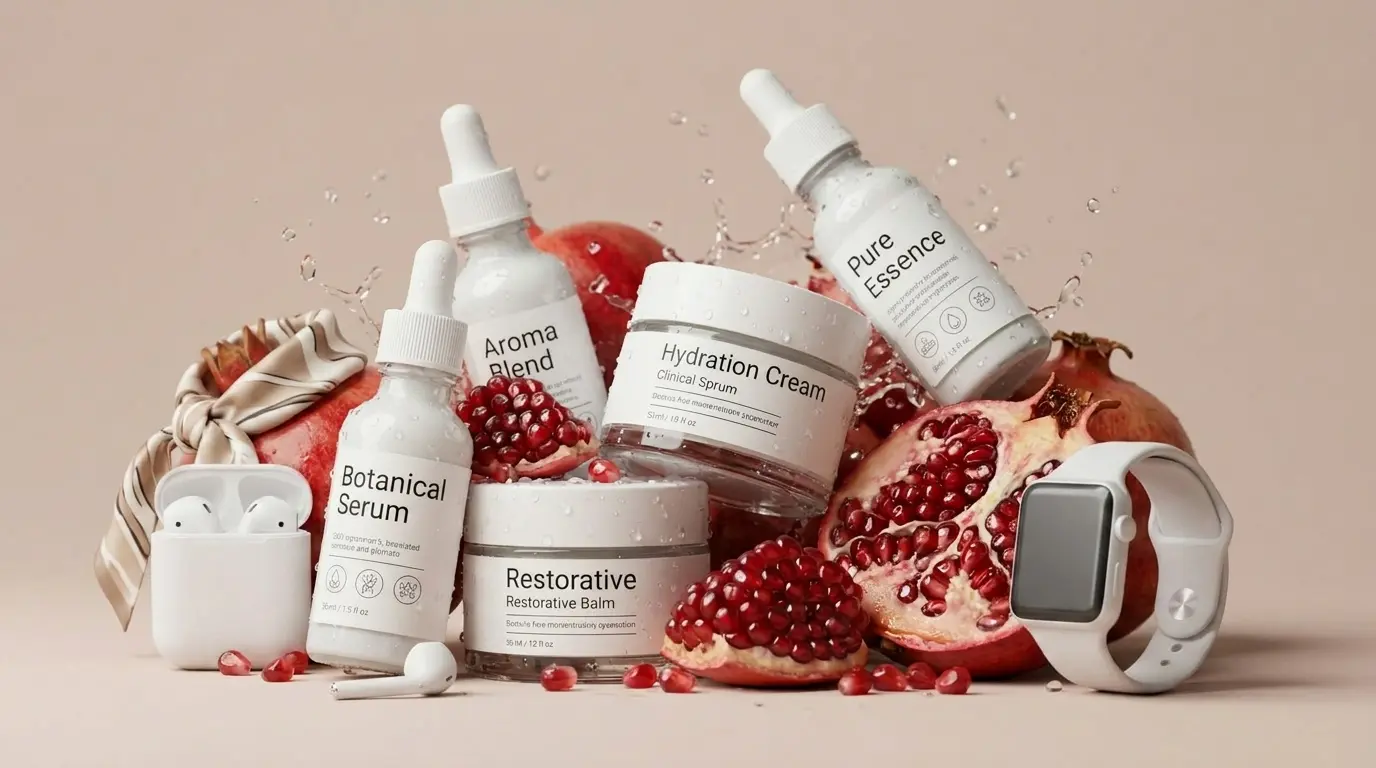
Turn a product brief or image idea into a prompt you can assess. Set out the subject, setting, and visual details before you start generating.
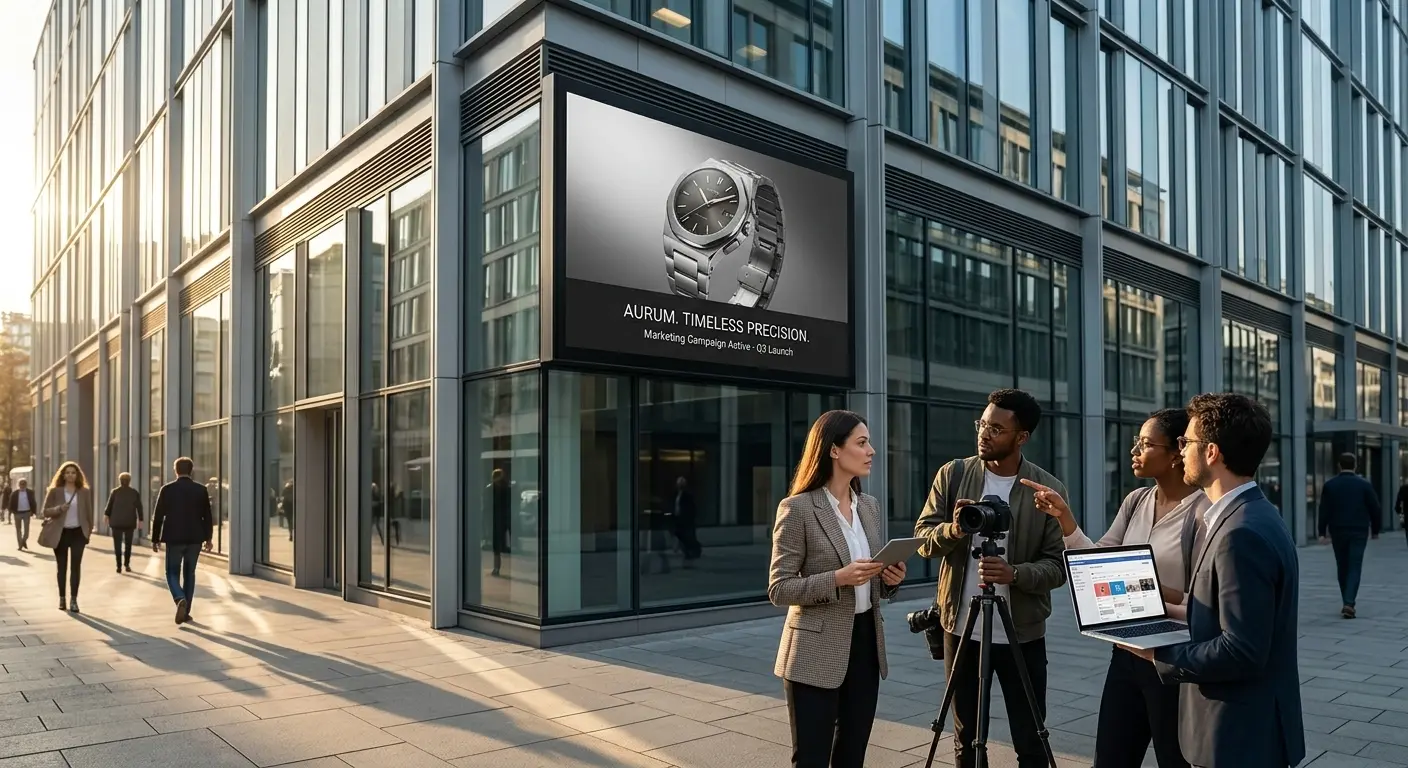
Describe the action and camera direction before making the clip. References can help explain the motion and atmosphere you want.
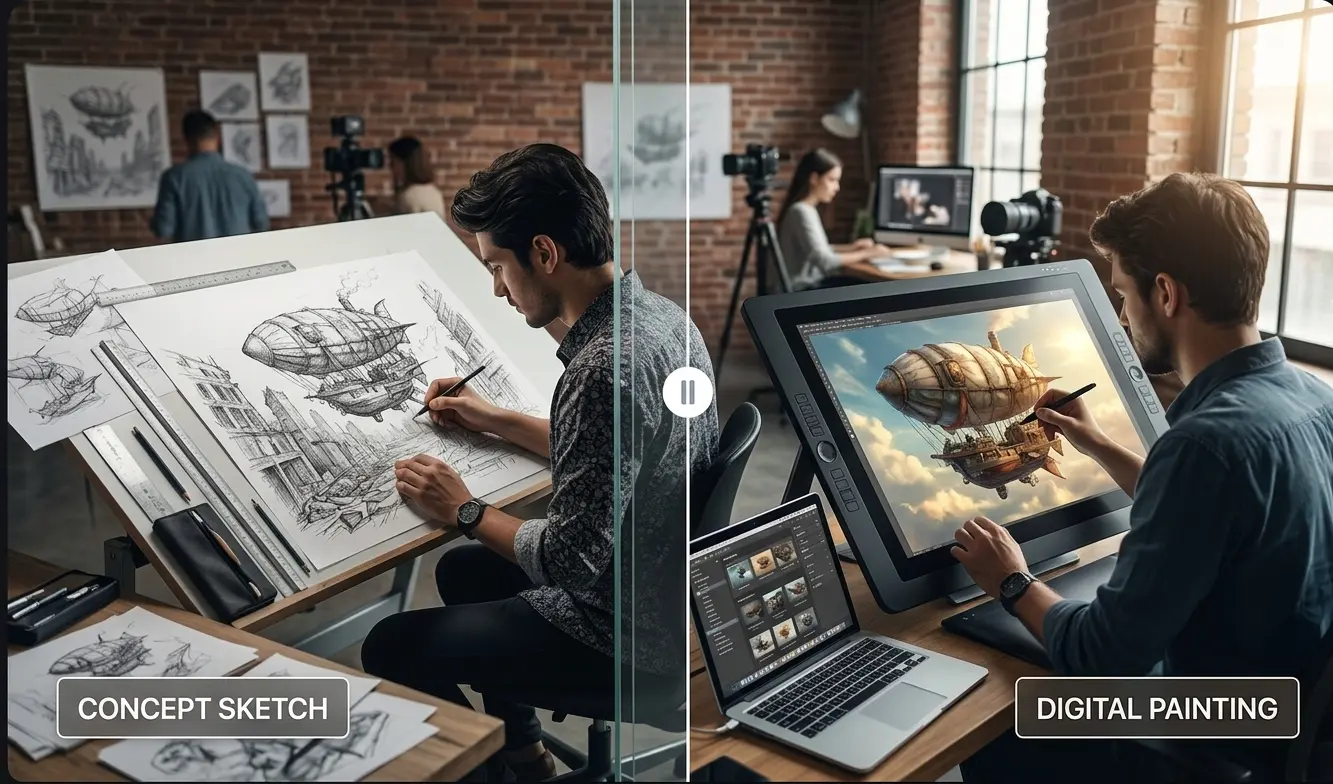
Once released, this planned tool is intended to remove unwanted text from screenshots, product visuals, or campaign assets. It is not available today.
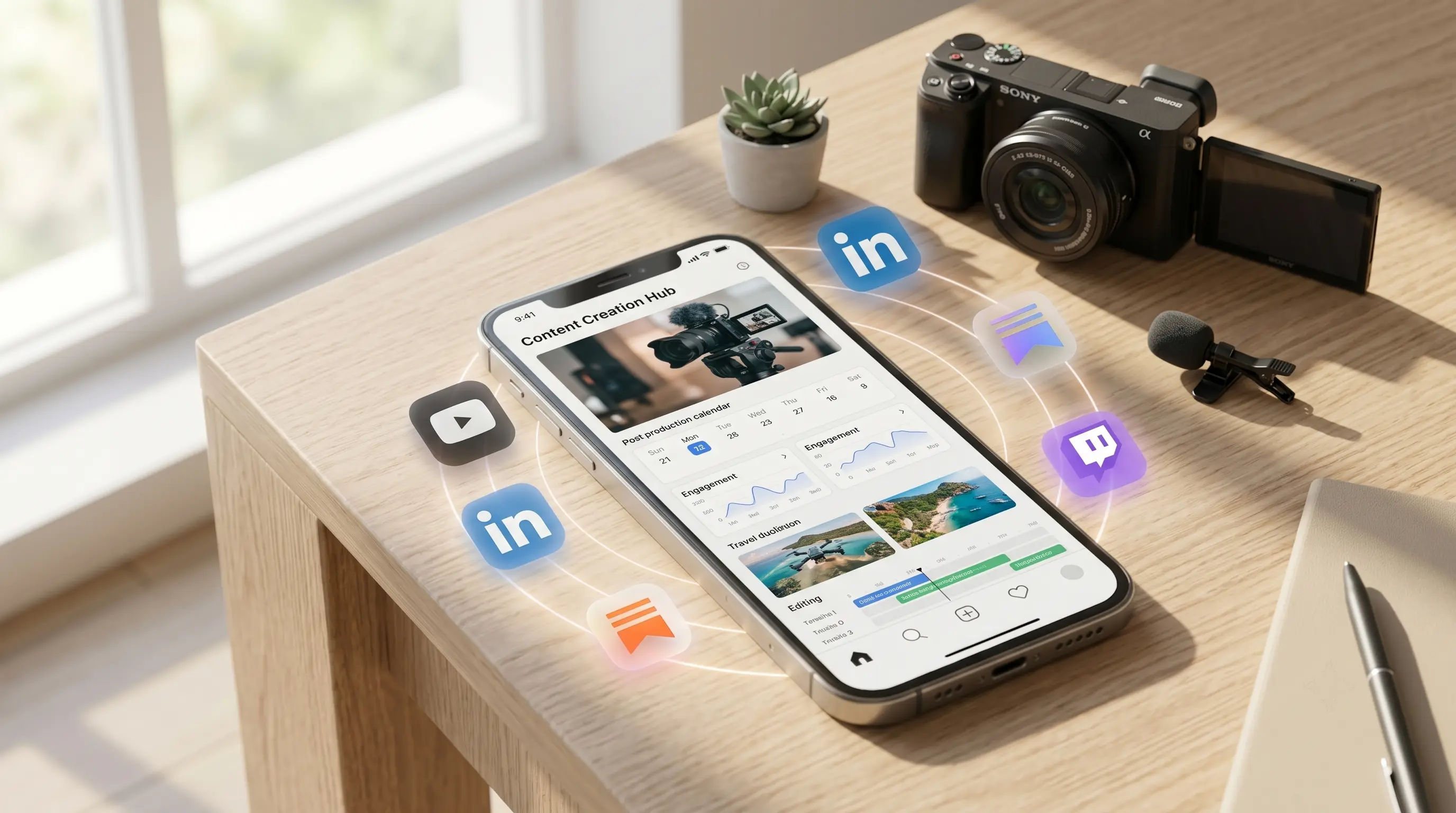
Larger gallery, presentation, and campaign images are a planned use for upscaling. Access will become available when the tool is released.
Creator feedback
These creator comments also cover tools whose KVideoAI pages are still awaiting release.
Content Creator
"I drop a rough idea into Prompt Generator and get a structured prompt back in about a minute — the video mode even writes the camera moves."
Marketing Designer
"Image Text Remover clears supplier labels and sale badges without masks, so refreshed campaign visuals go back into rotation the same day."
Creative Producer
"We finish AI drafts in Image Upscaler's Quality mode — the 8K output has clean edges and richer texture that clients can take straight to print."
Frequently asked questions
A guide to the tool you can open now and the options still being prepared.
Start your next image or video with a clearer brief. Write a prompt now and browse what is planned for the rest of your creative workflow.
Browse AI Tools